To stop SilverSingles charging you again, log in on the website, open Me, then Settings, Payment, Payment Details, and set Renewal Status to off. Your Silver Select membership keeps running until the expiry date shown on that page. After that date the paid extras stop (the site calls them its 33 privileges) and nothing more is taken. If you paid through Apple or Google rather than on the website, cancel with them. The steps for both are below. Whether the website’s Renewal Status line also shows a store subscription is to confirm. A refund is only possible within three working days of paying.
Cancel on the website
Auto-renewal is on by default when you subscribe on the website. A plan renews for the same length as the plan you first bought, so a three-month plan is followed by another three months unless you switch it off. Switching it off does not end your membership early. It only stops the next payment.
- Log in at silversingles.com and press Me, the person icon. On a computer it sits at the bottom of the left-hand column. Where it sits on a phone screen is to confirm.
- Open Settings. The page is headed Settings, Customer Support & Improvement Suggestions, and it is one long list.
- Scroll to the Payment section and open Payment Details.
- Read the table. It shows Payment Type, Username, Membership Type, Price, Purchase Date, Expiration Date and Renewal Status.
- If Renewal Status shows on, that is the line to change. We could not try it ourselves, because our account had nothing to switch off. If you cannot see how to change it, use the Contact Support box under the table. Once it is off, the note underneath says so in a full sentence.
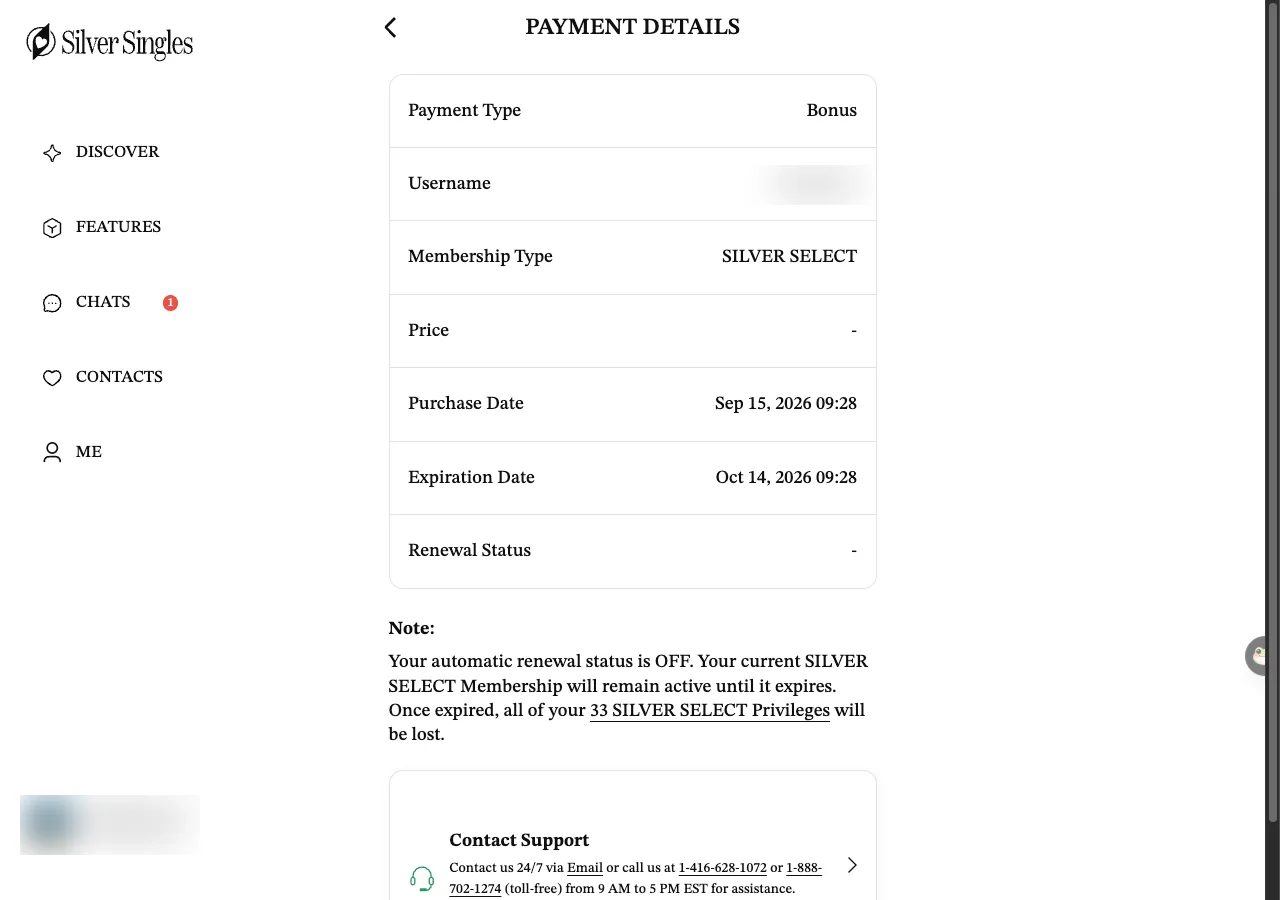
On our account the dates ran from Sep 15, 2026 to Oct 14, 2026, a month. Renewal Status was a dash, and the note beneath the table spelled out what that meant.
That is the state you want. With renewal off, the Expiration Date on this page is the day your membership ends. You keep every Silver Select privilege up to that day, private messages included, and then they stop. Nothing is charged. If you leave renewal on, the site takes another payment for the same length of plan when that date arrives.
We can tell you where the line is and what the page says once renewal is off, and that is all. Whatever your page shows on that line, read the note underneath.
The same page has a Contact Support box. It gives the email address, support@silversingles.com, and two phone numbers, 1-416-628-1072 and 1-888-702-1274, staffed 9am to 5pm Eastern Time. The first is a Canadian number, so from the UK it is an international call. The second is a North American freephone number and is not a UK number. The hours work out at 2pm to 10pm UK time. The box says you can contact them by email around the clock, and email is the sensible route from here.
Cancel on iPhone
If you subscribed inside the iPhone app, Apple took the payment, so you cancel with Apple. Whether the Renewal Status line on the website shows or controls an Apple subscription is to confirm. Apple’s own page, Cancel a subscription from Apple, gives these steps for an iPhone. We quote them as they stood on 16 September 2026.
- "In Settings, tap your name."
- "Tap Subscriptions."
- "Tap the subscription."
- "Tap Cancel Subscription. You may need to scroll down to find the Cancel Subscription button. If there is no Cancel button or you see an expiry message in red text, the subscription has already been cancelled."
Look for SilverSingles®: 50+ Dating in the list, which is the app’s name in the App Store. Apple’s page does not say whether a cancelled subscription keeps running to the end of the period, so we cannot promise that it does. It does say that if you cannot find the subscription, you should search your email for “receipt from Apple” and check which Apple Account the receipt names. If there is no Apple receipt at all, you most likely paid the website, and the Payment Details steps above are the ones to follow.
Cancel on Android
The Android app was published on Google Play on 19 May 2026. If your receipt came from Google Play, cancel there. Google’s page, Cancel, pause or change a subscription on Google Play, gives these steps for an Android device, quoted as they read on 16 September 2026.
- "On your Android device, go to subscriptions on Google Play." On Google's page those words are a link to your subscriptions in Google Play.
- "Select the subscription that you want to cancel."
- "Tap Cancel subscription."
- "Follow the instructions."
Two more lines from the Google page are worth having. “When you uninstall the app, your subscription won’t cancel.” Removing the app from your phone changes nothing. And on what happens after: “When you cancel a subscription you’ll still be able to use your subscription for the time that you’ve already paid.” So on Android, as on the website, cancelling stops the next charge and leaves the current period alone.
Both store pages said on 18 September 2026 that the app has in-app purchases, so a subscription bought inside the app is held by the store. Whether the Android app ever sends you to the website checkout instead is to confirm, because we have only used the website. How the two apps and the website fit together is on the SilverSingles app: iPhone, Android and the web. If you are not sure where you paid, look at your bank statement. If the charge names Google or Apple, the store holds the subscription. If not, start on the website.
Will I get a refund?
Yes, if you ask within three working days of subscribing. The service agreement allows a refund inside that window. After it closes there is no refund, whether you have used the membership or not. A six-month plan bought to test the water is six months you have paid for. If you are choosing a plan now, buy the shortest one first.
To ask, email support@silversingles.com. Put your username and the date you paid in the message, and say plainly that you are asking for a refund within the three working days the service agreement allows. Keep the reply. Email is easier than the Canadian phone line and leaves a record.
The site’s own FAQ page did not help here. When we checked it on 16 September 2026 it had 10 entries, on photo verification, voice calls, hiding a member, changing your age and auto-reply, and nothing on cancelling, renewal or refunds. Do not spend time looking there.
If you paid through Apple or Google, the money went to them and a refund request goes to them too. The Google page says “Your past subscriptions can’t be refunded, with some exceptions, as specified in this article or in Google Play’s refund policies.” Apple’s page does not cover refunds. Whether the site’s own window of three working days applies to a purchase billed by a store is something we still have to confirm.
Pause or delete instead?
Switching renewal off and deleting your account are two different things. Renewal off keeps your profile and your conversations and lets the paid part run out. Delete removes the account, or so the row’s name suggests. What that involves is to confirm, as we say below. If you only want to stop paying, do not delete.
If you do want to go, the option is under Me, then Settings, then Account Management, then Pause or Delete Account. It sits at the very bottom of the Settings list, below Sign Out. Press it and the site asks for your password before it shows you anything else. The box reads “Protect your security and privacy by entering your password.” with a Password field, a Forgot Password link, and two buttons, CONFIRM and NOT NOW.
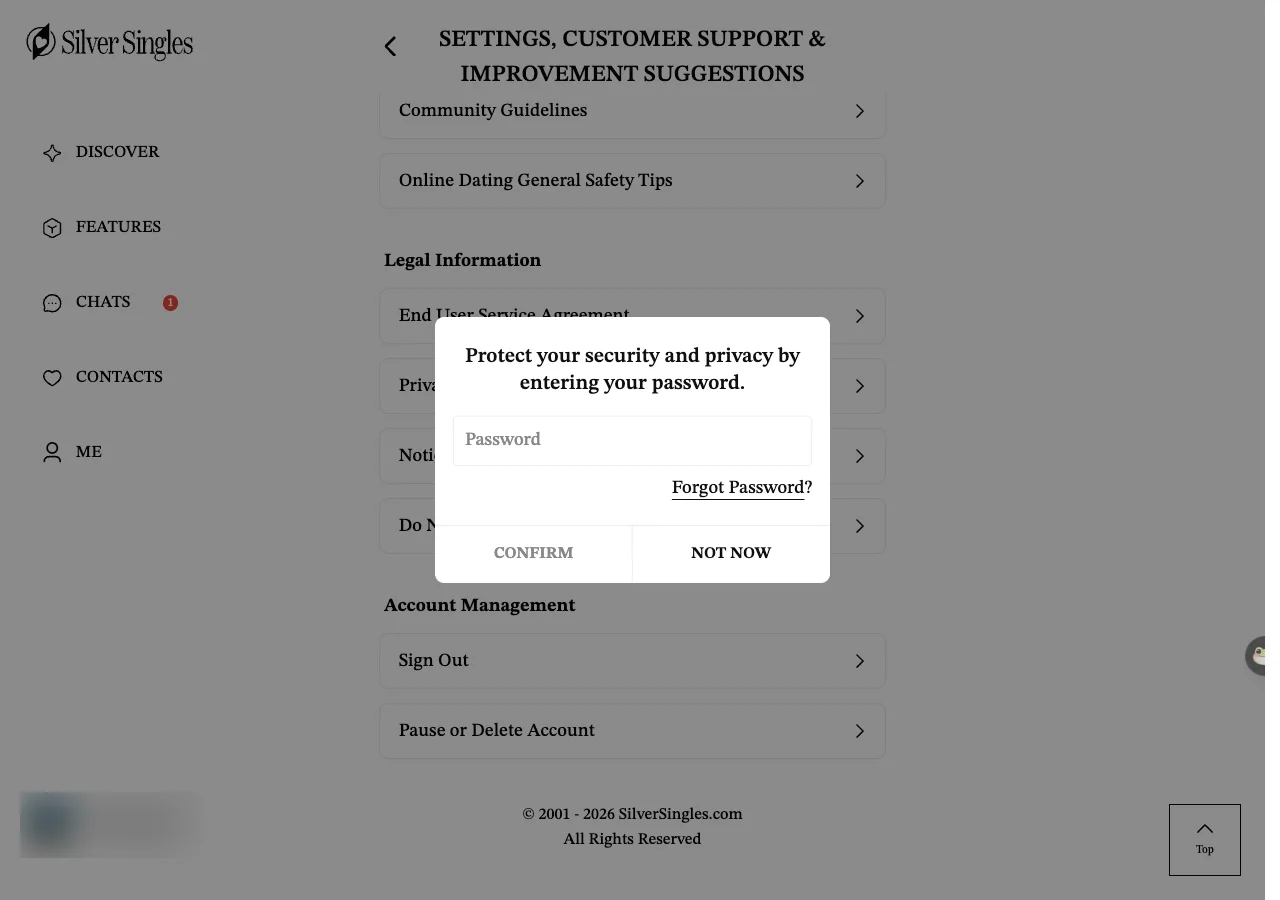
We did not enter the password, so we cannot show you what is behind it. The row’s name promises two choices, pause and delete. What each screen says once you are through, and whether a deletion can be undone, is to confirm.
Before you press CONFIRM, do two things. Switch renewal off on the website, or cancel with Apple or Google, so nothing is charged after you have gone. The Google page says outright that uninstalling the app does not cancel a subscription, and we would not assume that deleting a profile does either. Then save anything you want to keep, because we cannot tell you what the site keeps. For everything else about your account, the help pages list what we have checked so far.
Last updated 19 September 2026.