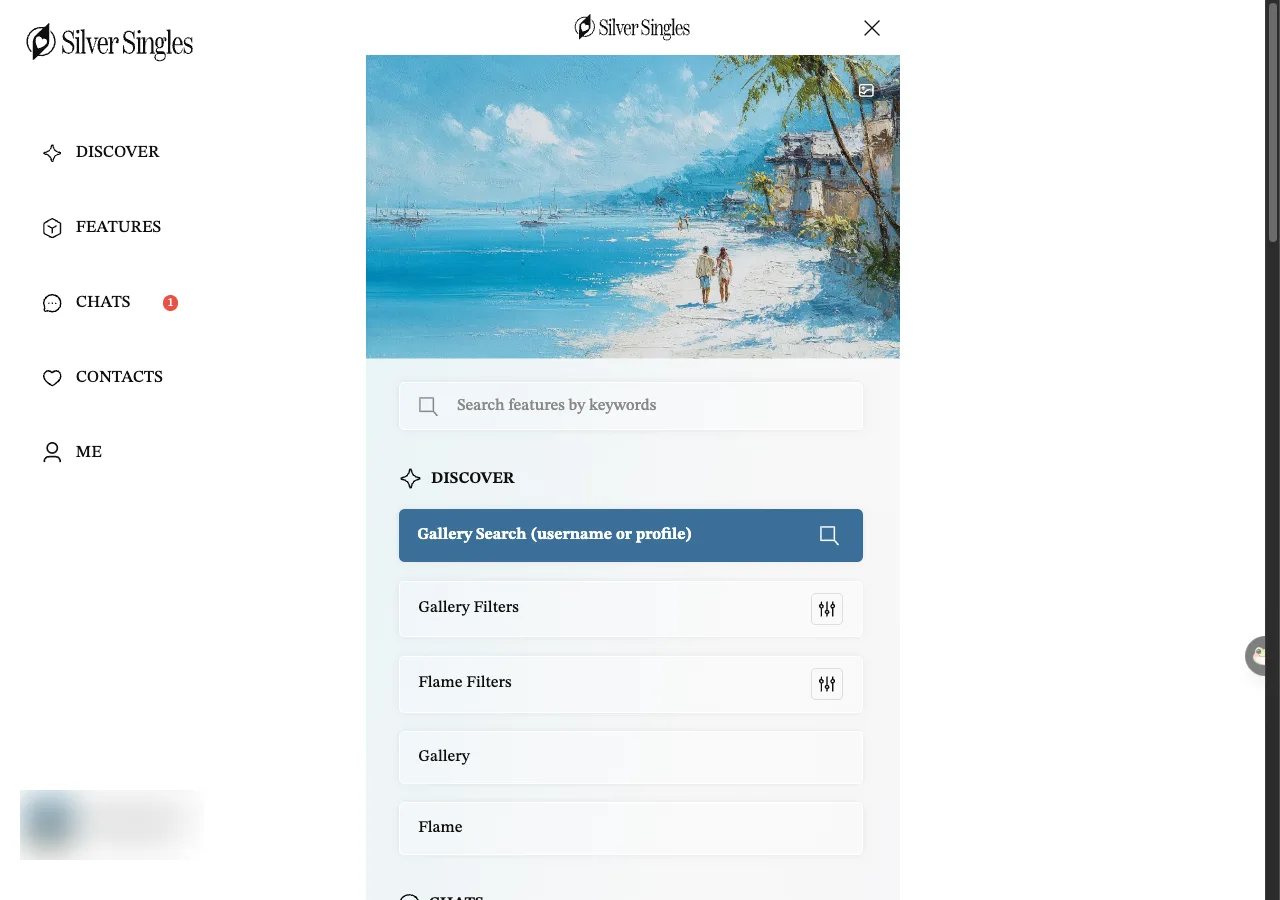
Visitors are the members who opened your profile (the tab is called Viewed You), the heart means like, the X means pass, and the small tick means verified. Every other label is below, A to Z, and each one is a word we saw on the member site. On the web version, which is what we checked, the site has five main screens in the left column: Discover, Features, Chats, Contacts and Me. Down that column the four-point star is Discover, the box is Features, the speech bubble is Chats, the outline heart is Contacts and the person is Me. Most of the labels on this page live inside those five. If you want the full list of what the site can do, press the sliders icon (three short lines, each with a small knob) at the top right of Discover. It opens a features drawer, and the picture below shows it.
Where this page says to confirm, we could not check it ourselves. Most of those gaps are about what a free account sees, because the account we used held a Silver Select membership at the time.
Jump to: 1:1 Meetup, Flame, Gallery, Global Visibility, Greeting Cards, Groups, Invisibility, Like and Likes You, Matches, Moments, Notes & Ratings, Saved, Silver Select badge, Verified badge, Viewed You (Visitors), Wink.
1:1 Meetup
A 1:1 Meetup is an invitation to meet one person at a set time and place, posted by a host. You find them under Features, Meetup, 1:1 Meetup, and under Chats, 1:1 Meetup. Each card shows the host, a title, a category such as Coffee & Tea or Dining, a date and a town, with a Request to Join button. The note under each card reads: “Only the host can see who requests to join or joins a private 1:1 meetup.” Creating one is a Silver Select privilege. Whether a free account can request to join is to confirm.
Flame
Flame is the first tab on Discover. It shows one member at a time on a tall card, with the photo filling the card and the name, age, occupation and town near the bottom. Press the heart to like and the X to pass. Flame Filters, in the drawer, sets gender, age, location and an Enable expanded search switch that widens the pool once you have seen everyone who matches. Unlimited swipes & likes is a Silver Select privilege, so a free account has some limit. How many a free account gets is to confirm. See Why some profiles have no photo for what a blank card means.
Gallery
Gallery is the second tab on Discover. Instead of one card at a time it shows a row of small portraits with a username and age under each, then a scrolling feed below. Gallery Search, in the drawer, finds a member by username or, as the site’s own label puts it, by profile. Gallery Filters sets gender, age and location on its Basics tab, and sort order plus a long list of lifestyle filters on its Advanced tab. The Advanced tab needs Silver Select and resets when the membership expires.
Global Visibility
Global Visibility is a switch under Me, Settings, Privacy & Visibility. The site’s own wording is that when it is on, you and members in other countries who also have it on can see each other. Switch it off and members in other countries stop seeing you and you stop seeing them. Your own country comes from your profile, so check the Country field in Edit My Profile too. For a UK member this is the first of three free settings to check. It was off on our account on 15 and 16 September 2026, and what a brand-new account starts with is to confirm. The steps are in Only see people in the UK.
Greeting Cards
Greeting Cards is a page under Special Features in the drawer. You pick a theme, Romantic, Modern or Vintage, then a design such as Line Art, Soft Watercolor or Valentine’s Day, and add a greeting. Personalised greeting cards are listed among the Silver Select privileges, so whether a free account can open the page or send a card is to confirm.
Groups
Groups are shared chat rooms. On 16 September 2026 the Groups tab under Chats was labelled GROUPS (22), with filters for All, Joined, New and Created. The first two rooms were Public Group, with a CHAT button, and Anonymous Social Group, with a CHAT FREE button. The line under Anonymous Social Group reads: “Chat freely and anonymously with a random avatar and username.” Those two and six more, including Sunshine Café, Tea House and Library, carried an Official badge, and the other fourteen did not. Every room after the first two had a JOIN & CHAT FREE button, and a Create Group button sat at the bottom. Opening the tab also brings up a box of group rules with a GOT IT button under it. A separate thing with a similar name is the Group tab under Features, Meetup, which is a meet-up for several people rather than a chat room.
Invisibility
On-demand invisibility appears in the Silver Select privileges list under Take Control. The switches themselves live under Me, Settings, Privacy & Visibility, Customize Privacy & Visibility. Hide me from all members means only you can view your profile and photos. Browse profiles anonymously is also in that privileges list. How that switch is labelled on this page is to confirm. The switch for online status is called Hide my online status from my profile, and the line under it reads: “Hide the green online icon on your profile. Others can still find and view your profile as usual.” Whether these switches reset when a Silver Select membership expires is to confirm.
Like and Likes You
Pressing the heart on a Flame card sends a like, and Contacts has two tabs for these: You Like lists the people you liked, and Likes You lists the people who liked you. Seeing who likes you is a Silver Select privilege, so what a free account sees on the Likes You tab is to confirm. A like is not a message. It simply shows up on the other person’s Likes You tab, and winks are a separate thing.
Matches
The Matches tab under Contacts lists your matches, and the Notifications thread under Chats says it keeps track of matches, requests and other activity. What the site counts as a match is to confirm. Two Silver Select privileges relate to this. Curated daily matches is a daily selection, and Reconnect with expired matches brings back a match you let lapse. How long a match lasts before it expires is to confirm.
Moments
Moments is the second tab under Features. It is a feed of members’ photos and videos, with three sub-tabs: Moments, Videos and Blend. When we opened it on 16 September 2026 it landed on Videos. Under Me, Settings, General Preferences there is a switch called Sync Updates to Moments. When it is on, every approved photo you add to your profile is posted to Moments automatically, except private photos. Whether it is on for a new account is to confirm, so if you would rather your pictures stayed on your profile, check that switch before you add your first photo. What the Blend tab shows is to confirm.
Notes & Ratings
Add or Edit Private Notes & Ratings is a page reached from the drawer, from Me, or from the Notes tab under Chats. You open a member’s profile, choose Add / Edit a Private Note & Rating, and write yourself a reminder. Nobody else sees it. The page has tabs for SSG Contacts and Non-SSG (SSG is the site’s short name for itself), plus a Calendar & Reminder button.
Saved
Save a profile you are interested in and it sits in the Saved tab under Contacts until you remove it, so you do not have to hunt for it again in Gallery. Whether the other member is told when you save them is to confirm.
Silver Select badge
Silver Select is the only paid tier. A crown and the words SILVER SELECT show under your own name in the left column when you are subscribed, and SILVER SELECT MEMBER shows above a member’s username on their profile page. The badge is one of 33 privileges, and the site describes it as a signal of commitment. Silver Select is what you need to send private messages to anyone. The full split is on Free vs Silver Select.
Verified badge
A small tick beside a member’s name and age means they have been verified. Under Me, Get Verified and Stand Out there are three checks: profile photo, which takes 3 to 8 seconds, mobile number, which takes about 5 seconds, and an email link. Verification is free for now, in the site’s own words. Which check earns the tick on the card is to confirm.
Viewed You (Visitors)
The Viewed You tab under Contacts lists members who opened your profile. When it was empty on our account, the screen read: “No visitors yet! Get more attention with a well-written profile and great photos!” So visitor and viewer mean the same thing here. See who viewed you is a Silver Select privilege. What a free account sees on this tab is to confirm. Browse profiles anonymously, in the Invisibility entry above, points the other way. Whether it keeps you out of other members’ Viewed You lists is to confirm.
Wink
A wink is a quick hello that costs nothing to send and needs no words. The Chats screen has a filter called Free Winks, next to All, Unread and Private. Silver Select adds Unlimited winks, Customised winks and Animated winks, so a free account has some limit on how many it can send. That number is to confirm. Customised winks is a page under Special Features in the drawer where you make your own. On a free account a wink is the way to say hello, since private messages to anyone need Silver Select.
Last updated 16 September 2026.